Discord does not have one universal “test every sound” button. Notification sounds, voice-channel audio, the input device, and a server Soundboard pass through related but different controls. The fastest reliable check is therefore a sequence: prove the wider output path, inspect Discord’s device and volume choices, then verify the feature that failed.
Quick answer
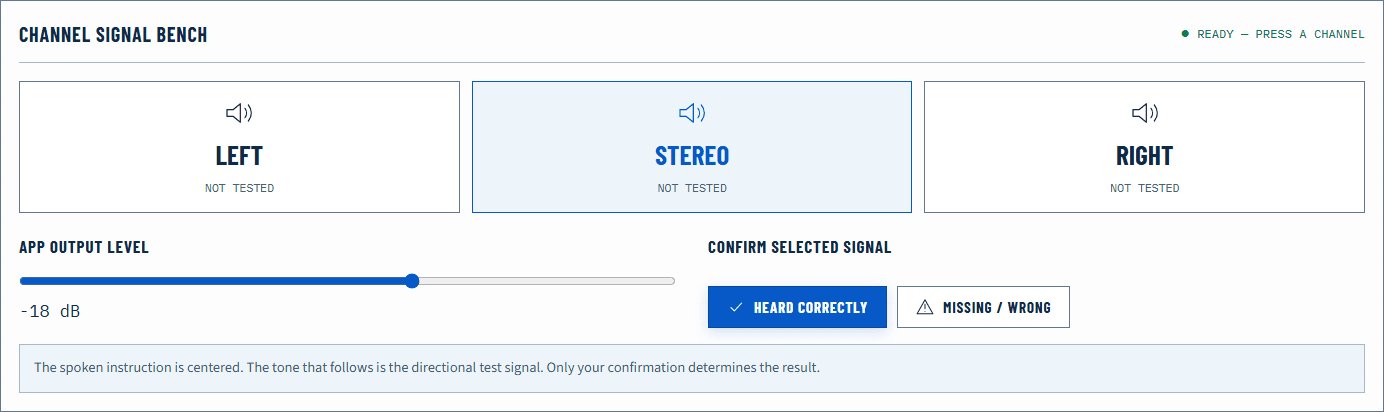
First, open the Speaker Test and play a moderate-level signal. If that signal is silent, the fault is wider than Discord; use the no-sound guide before changing server settings. If the browser test works, open Discord’s User Settings → Voice & Video, choose the intended output device, and use the available mic or voice checks. Then join a voice channel and ask another participant to speak. For Soundboard, open the Soundboard in an eligible voice channel and confirm that your role has permission to use sounds.
Do not turn every volume control to maximum. Discord, the operating-system app mixer, the output device, and sometimes the headset each have independent gain stages. A safe test changes one stage at a time.
Run a browser baseline first
- Disconnect outputs you are not using, such as an idle monitor, dock, or old Bluetooth headset.
- Set system media volume to a moderate level and open the Speaker Test.
- Play the test signal. Confirm that it comes from the physical device you expect.
- Run the left and right controls once. This catches a partially inserted plug or a one-channel fault that can make a Discord sound seem absent.
- If you also need voice chat, open the Microphone Test, grant access only when prompted, and check that the relative meter responds without repeatedly hitting 0 dBFS.
This baseline is deliberately outside Discord. A passing result shows that the browser, system output, cable or radio link, and physical transducer can produce a known signal. It does not prove that Discord selected the same route, but it prevents you from treating an operating-system problem as a server permission problem.
Check Discord voice and notification audio
Open User Settings, then Voice & Video. Menu wording can differ between desktop, browser, and later Discord releases, so use the device and volume labels as landmarks.
Confirm the output device first. “Default” follows the current system default, which is convenient until Windows or macOS switches to a monitor, dock, or newly connected headset. Selecting the intended device explicitly can isolate that ambiguity. Set output volume at a moderate point, then check whether any deafen control is active.
For microphone input, select the intended input and speak at a normal distance. A visible input response indicates that Discord receives a signal; it does not guarantee that another person receives clean audio. Join a private or low-stakes voice channel and conduct a short two-way check. Ask the other participant to describe level, noise, and dropouts rather than merely saying “it works.”
Notification sounds can be disabled separately from voice. Review Discord’s notification settings and the notification choices for the current server or channel. Also check the operating-system volume mixer while Discord is producing a sound. On Windows, an application can be muted or assigned to another device without muting the rest of the system.
Test a server Soundboard
Discord’s official Soundboard guide describes Soundboard as a voice-channel feature with server sounds and permission controls. Join a voice channel in the target server, open the Soundboard control, and choose a known sound. Ask someone in the same channel whether they heard it.
If the Soundboard is missing or cannot play, separate four possibilities:
- Eligibility or availability: the feature or control may not be available in the current client, context, or server configuration.
- Role permission: the server can control who is allowed to use Soundboard sounds.
- Local playback: you may be sending a sound that others hear while your own local Soundboard volume is reduced.
- Server-specific configuration: a custom sound can be missing, removed, or inaccessible even when built-in or other server sounds work.
Test one known sound before evaluating a custom upload. That distinguishes the Soundboard path from a problem with one asset. Do not repeatedly upload or rename sounds while the basic output path is still unverified.
Read the failure pattern
| What you observe | Most useful next check | Why it narrows the fault |
|---|---|---|
| Browser test and every Discord sound are silent | System output, hardware mute, and app mixer | The problem is not specific to Soundboard |
| Browser test works but Discord voice is silent | Discord output device and deafen state | The wider playback path has already passed |
| Voice works but notifications do not | Discord notification settings and server overrides | Voice and notifications have separate controls |
| Others hear Soundboard, but you do not | Local Soundboard or output volume | Sending and local monitoring are different observations |
| Soundboard control is absent or disabled | Server role permission and feature availability | A volume change cannot grant a missing capability |
| Sound degrades when the headset mic opens | Bluetooth profile change | Classic Bluetooth may switch to a voice-oriented route |
If only one channel is missing, stop the Discord investigation and run the Left and Right Audio Test. A channel-specific hardware or balance fault affects every stereo application, even if it was first noticed during a notification.
Browser, desktop, and Bluetooth limits
Discord’s browser client depends on browser media permissions, while the desktop app participates directly in operating-system routing and the app mixer. A successful browser speaker test therefore proves the physical path, not identical app routing. Compare the desktop and browser clients only after noting which output each one uses.
Bluetooth adds another variable. Opening the headset microphone can move some systems from a higher-quality playback profile to a voice profile with less bandwidth. If music and Soundboard clips suddenly sound narrow when the mic becomes active, read why Bluetooth headphones sound worse with the microphone on. That behavior is different from packet loss or a broken speaker.
No browser page can inspect whether another participant actually heard a Discord sound. The page supplies a known local signal; the Discord check requires a participant or a supported in-app test.
Check server roles without changing the whole server
When Soundboard works for one member but not another, compare their effective role permissions before changing audio devices. Discord’s server controls can allow or deny Soundboard use independently of local playback. Ask an administrator to inspect the affected role and channel context rather than granting a broad permission as a test. A temporary permission change should be narrow, documented, and restored after verification.
Separate using a sound from managing custom sounds. A person may be able to play an existing sound without permission to upload, edit, or remove one. Likewise, a missing custom asset does not prove that the entire Soundboard transport failed. Test a known available sound first, then the custom sound, using the same voice channel and participant.
If the server uses role overrides, compare in a channel where the behavior is known. Do not recreate roles or remove permission overrides during an audio test; that expands a playback investigation into a server-access change with wider consequences.
Collect evidence for a Discord-only failure
Before clearing settings or reinstalling, write down the narrow facts:
- whether the browser speaker and microphone baselines passed;
- whether the failure affects voice, notifications, Soundboard, or all three;
- which Discord client is involved—desktop, browser, or mobile;
- whether another participant hears a sound you cannot hear locally;
- whether the symptom follows one server, one channel, or every server;
- whether activating the microphone changes Bluetooth playback quality.
Then restart Discord once and repeat the same action. A clean restart is a controlled step; reinstalling is not the first diagnostic. If the failure is server-specific and other servers pass, device drivers are a weak explanation. If every Discord feature fails while other apps pass, the Discord route or local app state deserves attention.
Retest without losing the evidence
After changing one Discord or system setting, return to the exact failed action. Play the same notification, use the same Soundboard sound, or repeat the same voice-channel exchange. Record whether the result changed before touching another control.
If the browser baseline now fails too, return to How to Test Sound on Windows 11 or the relevant system guide. If the baseline remains clear but Discord alone fails, reset Discord’s voice settings only after recording the selected input and output. That preserves a useful comparison and avoids turning a single routing error into several unknown changes.
Official sources
Application and operating-system controls can move. These primary references are the update baseline for this guide.