Windows 11 audio passes through several selectable layers: the physical device, the system output, per-app routing and volume, optional enhancements, and the application itself. A good test begins with a known browser signal and changes one layer at a time. That is faster than toggling every setting and losing track of which change fixed the symptom.
Quick answer
Open Settings → System → Sound, select the intended output, and use Windows’ available device test. Then run the Speaker Test in your browser and inspect Volume mixer while it plays. For input, select the microphone in Sound settings, check its level response, and compare it with the Microphone Test. If both sides matter, finish with the Left and Right Audio Test.
Keep the system level moderate until the route is confirmed. A disconnected headset can cause Windows to send a sudden test tone to loud speakers instead.
Start with the physical route
Before opening settings, verify the simplest facts. Powered speakers should be on; a USB interface should show normal power; a 3.5 mm plug should be fully inserted; and a Bluetooth device should indicate an active connection. Remove unnecessary docks, adapters, and idle outputs for the first test.
Play the Speaker Test. Confirm which physical device produces sound. If a monitor plays instead of the headset, you already know the signal exists and the selected route is wrong. If nothing plays, do not assume the driver is broken: a hardware mute, app mixer mute, disconnected device, or stale Bluetooth route can produce the same observation.
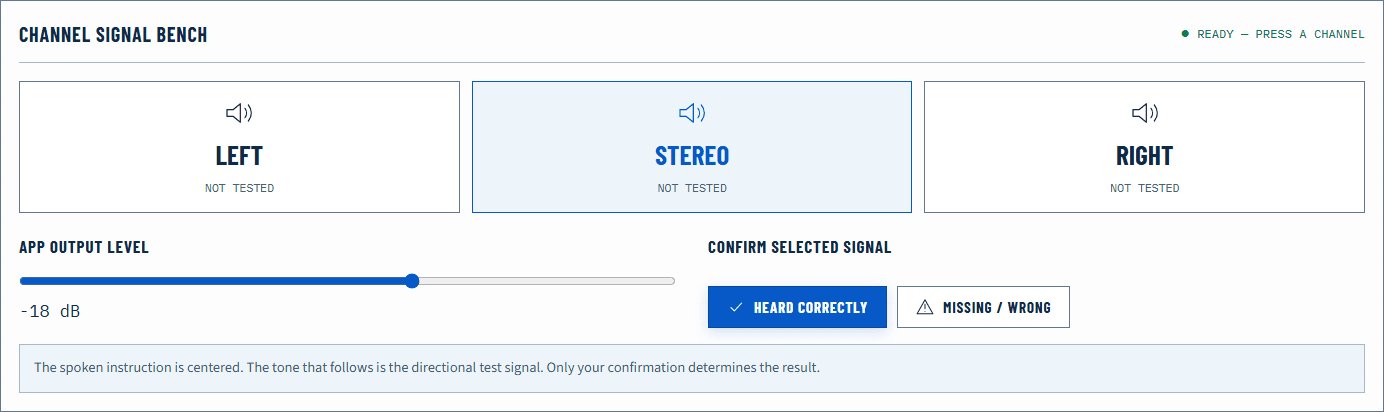
Run left and right once. Both channels should be distinct. If one is missing or quieter, move to the channel-specific guide rather than increasing master volume.
Check Windows output settings
Open Settings → System → Sound. Under Output, select the device you intend to use. Windows may list internal speakers, displays, USB devices, docks, digital outputs, and Bluetooth routes. Choose explicitly during diagnosis instead of relying on “default.”
Open the selected device’s properties and use a Windows test control if it is available. Note the result before changing format, enhancements, or spatial audio. A passing Windows test plus a failing browser test points toward the browser or its app-mixer route. A failing Windows test is wider than the browser.
Review output volume and mute state. If enhancements or spatial processing are enabled and the symptom is distortion, imbalance, or unexpected channel placement, disable one feature temporarily and repeat the same signal. Do not leave every feature disabled without a comparison; the goal is isolation, not permanent guesswork.
Inspect Volume mixer while audio plays
Windows can store a separate volume and output choice for an application. Open Volume mixer while the browser is actively playing the test tone. Find the browser process, confirm it is not muted, and check its assigned output.
This step explains a common contradiction: system sounds play through headphones, but the browser remains silent through an old monitor route. It also explains why one browser works while another does not. The operating-system default and per-app choice are related but not identical.
If the browser is absent from the mixer, start a sound again and re-open the mixer. If the assignment appears stale, return it to the intended device or system default, then stop and replay the same browser signal.
Test the microphone path
In Settings → System → Sound, locate Input and select the intended microphone. Speak normally and look for the system input response. Then open the Microphone Test, grant access when prompted, and compare the browser’s relative meter and local recording.
These observations isolate different layers:
- Windows responds and the browser does not: review browser site permission and the input selected by the browser or calling app.
- Neither responds: check the physical connection, hardware mute, Windows privacy access, and input selection.
- Both respond but recordings distort: lower the input gain and move slightly farther from the microphone.
- The meter moves but speech is extremely noisy: confirm Windows did not select a laptop array or webcam mic instead of the close microphone.
The browser meter reports relative digital level, not calibrated sound pressure. Read What Is dBFS? before targeting a number.
Use the failure matrix
| Observation | Where to look next | Reason |
|---|---|---|
| Windows test and browser test are silent | Hardware, output selection, power, connection | The failure exists before the browser-specific layer |
| Windows test works; browser is silent | Volume mixer, browser tab/site state | The physical output can already play |
| Browser works; one app is silent | That app’s device selection and mixer entry | System and hardware paths have passed |
| Left or right is missing everywhere | Balance, cable, adapter, or driver channel | The symptom follows the common stereo path |
| Crackle appears only at high level | Gain, enhancement, amplifier, or driver stress | Lower level provides a controlled comparison |
| Bluetooth quality drops when mic opens | Bluetooth voice route | The link may change profiles for two-way audio |
For a persistent silent path, follow the dedicated No Sound in Your Browser procedure. For one side, use How to Check Left and Right Balance in Windows 11.
Know the limits of a browser test
Web Audio controls the digital signal it creates. It cannot see a loose cable, measure calibrated speaker output, or guarantee which physical driver emitted a sound. The operating system can also resample browser audio to match the active device. A reported audio-context sample rate is useful context, not a hardware-quality score.
Windows settings and labels change across releases and hardware drivers. Microsoft’s current support page is the primary reference below. If a manufacturer replaces standard Windows controls with its own utility, preserve the same sequence: known signal, explicit route, one change, same retest.
Separate default devices from communication choices
Calling applications can remember a device or follow a communication-oriented default while media applications follow the general output. That is why a music player, browser, and meeting app can reach different destinations on the same Windows session. During diagnosis, select the physical device explicitly in the failing application and in Windows Sound settings, then verify the app’s Volume mixer entry.
When a new dock, display, USB interface, or Bluetooth headset connects, Windows may expose a new endpoint. Record the endpoint that passed rather than relying on a generic description such as “headphones.” If a Bluetooth headset exposes multiple routes, compare playback with and without its microphone active.
Avoid disabling every unused audio device as a first step. That changes system state broadly and can affect applications that depend on a particular endpoint. Explicit selection is a safer isolation technique.
When to use repair actions
Microsoft’s support workflow may recommend troubleshooters, service checks, driver updates, or driver rollback depending on the symptom. Use those actions after routing, mute, connection, and per-app volume have been checked. A driver change is meaningful when a repeatable failure begins after an update, affects the Windows device test, or persists across applications.
Before updating or removing a driver, record the device and current behavior and create the normal recovery point supported by your environment. Managed computers may require administrator involvement. Never download an audio driver from an unrelated download site; use Windows Update or the hardware manufacturer’s official support path.
After a driver or Windows update, repeat the Windows device test before opening third-party applications. Then test the browser and the original failing app in that order. This preserves the layer-by-layer comparison and shows whether the repair affected the shared device path or only one client.
Verify and document the result
After each change, stop and replay the identical test. A result that changes only after selecting a new output is strong routing evidence. A fault that follows headphones to another computer is stronger hardware evidence. A fault that remains on one Windows application while browser and system tests pass is application-specific.
Finish by restoring a safe listening level and reconnecting the devices you normally use. Repeat the speaker, left/right, and microphone checks once. Record the selected output and input if the computer is used for important meetings; Windows can change defaults when a dock, display, or Bluetooth device reconnects.
Official sources
Application and operating-system controls can move. These primary references are the update baseline for this guide.