Many Bluetooth headsets use one route for high-quality playback and another for two-way voice. Opening the headset microphone can make the operating system switch to a communication-oriented route with less playback bandwidth. The result may sound narrow, less detailed, or more obviously compressed even though the headphone drivers are not damaged.
Quick answer
Run the Headphone Test while no application is using the headset microphone. Then open the Microphone Test, grant access, and listen for a change in playback route or quality. If the change begins exactly when the mic becomes active and ends when capture stops, a Bluetooth profile or endpoint transition is more likely than a speaker failure. A separate microphone, wired output, or compatible LE Audio path may avoid the tradeoff.
Do not call every quality change “latency.” Bandwidth, channel mode, codec behavior, radio interruptions, and delay are different observations.
Reproduce the transition deliberately
Start with one Bluetooth device connected and close meeting, voice-chat, recording, and game applications. Confirm that no background app is holding the microphone.
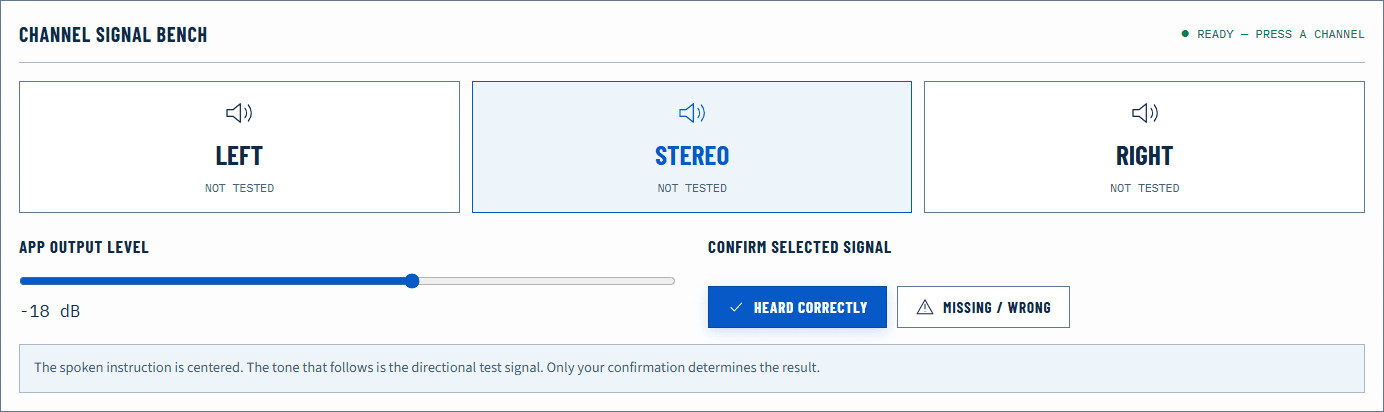
- Play a familiar mid-level signal with the Speaker Test.
- Run left and right to confirm both headphone sides operate.
- Stop playback, then start the Microphone Test.
- Speak once and play the same reference while microphone capture is active if the system permits it.
- Stop microphone capture completely and repeat playback.
Listen for a repeatable transition: stereo width may collapse, high frequencies may seem reduced, or the operating system may expose a different output name. The exact behavior depends on the headset, Bluetooth controller, operating system, and supported profiles.
If the degradation persists after every app releases the microphone, disconnect and reconnect the headset before drawing a conclusion. A route can remain stale after an application closes unexpectedly.
Why classic Bluetooth can change modes
Classic Bluetooth audio commonly distinguishes a playback-oriented music path from hands-free telephony behavior. Windows documentation describes Bluetooth Classic audio support in terms of profiles including A2DP for audio distribution and hands-free functionality for communication. The two-way route must carry microphone audio back while continuing playback, so it has different bandwidth and processing constraints.
This is why music can sound good until a meeting app, game chat, browser recorder, or voice assistant opens the headset microphone. The operating system is solving a different task: simultaneous input and output rather than playback alone.
The change is not necessarily a defect. It is a negotiated route across the whole chain. Different computers can behave differently with the same headset because their operating systems, Bluetooth adapters, and drivers support different capabilities.
Where LE Audio fits
Bluetooth LE Audio introduces a newer architecture and the LC3 codec, with features intended to improve flexibility and efficiency. However, seeing “Bluetooth 5” on a product does not prove an end-to-end LE Audio path is active. The headset, computer or phone, operating system, drivers, and application path must all support the relevant capability.
Do not promise that LE Audio automatically eliminates every quality or latency problem. Radio conditions, implementation choices, and application behavior still matter. Use the operating-system and manufacturer documentation for the actual device pair.
Failure matrix
| Observation | Most useful interpretation | Next check |
|---|---|---|
| Quality changes only while headset mic is open | Voice route or profile transition | Use a separate mic, wired route, or supported LE Audio option |
| Quality is poor even with mic closed | Wrong output endpoint, codec, radio, or source | Reconnect and compare another device or wired source |
| Short gaps and crackles occur with movement | Radio interference or range | Move closer, clear obstructions, and reduce crowded 2.4 GHz traffic |
| Audio is consistently late but otherwise clear | Buffering and codec latency | Compare wired output and use the Bluetooth delay guide |
| Only one ear is silent | Channel, battery, pairing, or hardware issue | Run the Left and Right Audio Test |
| Mic fails but playback remains good | Input permission or route selection | Check system input and application microphone choice |
The timing of the change is powerful evidence. A degradation synchronized with microphone activation suggests routing. Random distortion that follows head movement suggests radio conditions instead.
Practical ways to preserve playback quality
Use a separate microphone while keeping the headphones on their playback route. A laptop, USB, or wired microphone can carry input while Bluetooth handles output, though the meeting app must select the two devices explicitly.
Use a wired headset or the manufacturer’s USB radio adapter for critical calls when supported. Proprietary adapters may use a different transport and routing behavior than generic Bluetooth; consult the product documentation rather than assuming.
Close applications that do not need microphone access. A hidden browser tab or voice client can hold capture open and keep the headset in a communication mode. Revoke access only when appropriate; first identify the process using the mic through the system privacy indicator or app list.
If your operating system exposes multiple similarly named outputs, test each at moderate level. Do not select an endpoint solely because its label sounds “high quality”; names vary, and newer systems may present routes differently.
Distinguish quality, dropouts, and delay
“Bad sound” needs a more precise description:
- Narrow or telephone-like: likely a voice-oriented route or codec constraint.
- Crackles or brief gaps: likely radio interference, driver scheduling, or a weak link.
- Late audio: buffering, codec, application, and device latency.
- Distortion at loud peaks: gain or physical driver stress.
- One side missing: channel, pairing, balance, or hardware.
Use the matching tool or troubleshooting page for the observed pattern. A profile change will not be repaired by raising volume, and radio gaps will not be repaired by centering balance.
Browser and measurement limits
A browser can request microphone capture and generate output, but it usually cannot tell you which Bluetooth profile or codec the operating system negotiated. Device labels are intentionally limited and inconsistent. The controlled before-and-after test is therefore observational: capture begins, the sound changes, capture ends, the sound returns.
The site does not upload recordings or claim to measure over-the-air codec quality. Hardware-level confirmation may require operating-system diagnostics or vendor tools.
Verify the chosen workaround
Choose one workaround, then repeat the exact transition test. If a separate USB microphone lets the headphone output remain clear during a meeting-app test, you have isolated the headset-microphone route. If wired audio eliminates delay and dropouts, Bluetooth remains the variable.
Finish by testing inside the actual calling application, because it may choose different input and output devices than the browser baseline. Record the chosen pair so reconnecting a dock or headset does not silently replace it before the next meeting.
Official sources
Application and operating-system controls can move. These primary references are the update baseline for this guide.