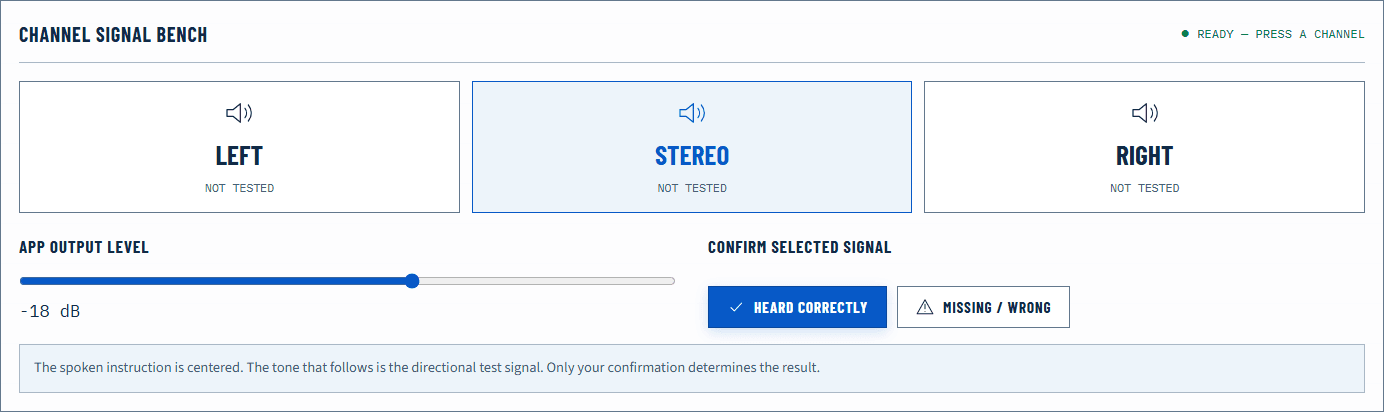
An image that pulls to one side can come from a Windows balance control, a partially connected cable, headphone fit, speaker position, room reflections, or a physical driver. Test channel identity first, then use controlled swaps to determine whether the offset follows the setting, the device, or your listening position.
Quick answer
Run the Left and Right Audio Test at a moderate level. Confirm that Left plays only on the physical left and Right only on the physical right. Then open Settings → System → Sound, select the output device, and inspect any channel or balance controls exposed by Windows or the device driver. Center both channels and repeat the same test. If the imbalance remains, swap the headphones around or swap speaker positions to see what the symptom follows.
Do not compensate for a sudden one-sided loss by raising the quiet channel to maximum. First rule out a loose plug, damaged cable, blocked grille, or accessibility setting.
Establish channel identity
Open the Left and Right Audio Test. Play the left signal, stop it, then play the right signal. Say the physical side out loud or note it before looking at any balance control. This avoids “fixing” a reversed cable by applying an opposite software error.
Next, play the stereo or center signal. With symmetrical headphones and a centered listening position, a correlated center signal should appear near the middle. This is a subjective location, not a calibrated measurement; room reflections and ear fit can shift it.
If left plays on the right and right on the left, inspect cabling, interface routing, speaker placement, and channel assignments. A balance slider cannot correct reversed identity.
Find the Windows balance control
Open Settings → System → Sound and choose the active output. Depending on the Windows build, audio driver, and device type, left and right level controls may appear in device properties or in an additional control panel exposed by the driver. Interface wording can change, so use the active device and channel-level labels as landmarks.
Set left and right to the same value. Record the original values first, especially on a shared or managed computer. Then stop and replay the identical left/right and center signals.
If Windows does not expose separate channel controls for that device, do not assume the feature is hidden somewhere that must be unlocked. Some digital, Bluetooth, USB, or vendor-managed routes provide different controls. Check the manufacturer’s utility only if it belongs to the active device.
Also review accessibility mono audio. Mono combines stereo content; it is not the same as balance. With mono enabled, a left-only test may be copied to both outputs, making channel identification impossible even when both drivers work.
Separate settings from hardware and fit
Use controlled physical swaps after centering software balance.
For headphones
Reverse the earcups briefly so the left driver sits on the right ear and vice versa. If the quietness follows the physical earcup, the headphone, cable, connector, or fit is implicated. If the quietness stays with the same ear, reseat the headphones, compare ear-tip seal or pad condition, and consider whether the observation is consistent across other devices. This is not a hearing diagnosis.
Test the same headphones on another known source, then test known-good headphones on the Windows computer. The two-way swap is stronger evidence than repeatedly reconnecting one device.
For speakers
Sit centered and measure roughly equal distance to both speakers. Temporarily swap the left and right signal cables at a safe point, or swap speaker positions if the system permits. If the low level follows one powered speaker or amplifier channel, hardware becomes more likely. If it stays on one side of the room, placement and reflections deserve attention.
Nearby walls, desks, and corners change frequency response. An imbalance that appears only on a bass note may be a room interaction rather than a channel-gain error. Use the Stereo Test with speech or a mid-frequency signal before drawing a conclusion from deep bass.
Failure matrix
| Observation | Likely scope | Next controlled check |
|---|---|---|
| Left and right identities are reversed | Cabling, routing, or placement | Trace the channel assignment end to end |
| Left-only plays from both sides | Mono audio or upstream summing | Disable mono temporarily and retest |
| Center moves after equalizing Windows channels | Software balance was involved | Keep equal values and verify other apps |
| Quiet side follows one earcup | Headphone, cable, connector, or fit | Compare another source and cable if detachable |
| Quiet side stays with one ear | Fit or personal perception | Reseat and compare carefully; this tool is not medical |
| Speaker imbalance changes with position | Room and placement | Center the listener and equalize distances |
If a channel is completely absent, use the dedicated one-side-not-working guide. If both sides work but remain unequal, follow the unbalanced-audio procedure.
Avoid misleading test conditions
Use identical source content for both sides and keep master volume fixed. Do not judge balance from two different songs, because mixing decisions can intentionally place instruments off center. Disable spatial effects and heavy EQ temporarily if they alter channel level or localization, then restore them one at a time after the baseline.
Bluetooth routes, USB interfaces, and manufacturer software can keep their own state. If the result changes when switching from wired to Bluetooth, document the route instead of treating the computer as one undifferentiated output.
The browser generates known channel data, but it cannot verify which physical driver played or measure acoustic level. Your observation and the swap tests provide that evidence.
Check interfaces and application pan controls
An external audio interface or mixer may expose separate monitor gains, pan controls, or channel routing outside the standard Windows balance page. Center those controls according to the manufacturer’s documentation and repeat the browser test. If direct monitoring is involved, distinguish the live input monitor from Windows playback; they can follow different paths through the same hardware.
Applications can also pan or process their own content. A balance problem heard only in one player, game, or communication app should be compared with the browser’s isolated channels and another known source. If every other source is centered, keep the investigation inside that application rather than offsetting the whole Windows output.
For USB headsets and digital speakers, unplugging and reconnecting can create or rename an endpoint. Confirm that Windows still selects the tested device before interpreting a new balance result.
Record a useful comparison
Write the result as a small matrix: source device, tested output, Windows left/right values, physical side, and whether the symptom followed a swap. “Right earcup remains quieter on two computers” is stronger evidence than “Windows sounds unbalanced.” “Quietness stays on the left side of the room after speakers are swapped” points in a different direction.
Keep test level and content constant. A balance offset that varies strongly with frequency should be documented by region, because fit and room response may be more relevant than one global channel value. Do not create multiple corrective EQ or balance layers before identifying where the offset originates.
Repeat the comparison after a normal reconnect or restart if the device stores its own channel state. Some interfaces retain hardware-mixer values independently of the Windows page, while some application pan settings reset when the app closes. A result that survives both a restart and a second source is stronger than one observed in a single session.
If you use hearing-assistance or accessibility compensation intentionally, do not erase it merely to make the test visually symmetrical. Record the original values, establish the neutral technical baseline only when appropriate, and restore the user’s required setting afterward. This procedure identifies the signal path; it does not prescribe personal accessibility choices.
Verify the repair
After one change, replay left, right, and center in the same order. Confirm channel identity first and balance second. Then test a familiar spoken recording at moderate volume. Speech centered in a stereo mix is often a clearer confirmation than wide music.
If equal Windows controls produce a repeatable hardware offset across multiple sources, compensation may mask rather than repair the cause. Preserve the results and consult the device manufacturer or a qualified technician. Do not use this browser procedure to infer a hearing condition.
Official sources
Application and operating-system controls can move. These primary references are the update baseline for this guide.