44.1 kHz and 48 kHz describe how many audio samples are processed per second. Both rates cover the conventional audible band when implemented correctly. In browser audio, the active AudioContext has one sample rate, and the operating system or browser may resample sources that do not match it. The number alone is not a grade for speakers, headphones, or microphone quality.
Quick answer
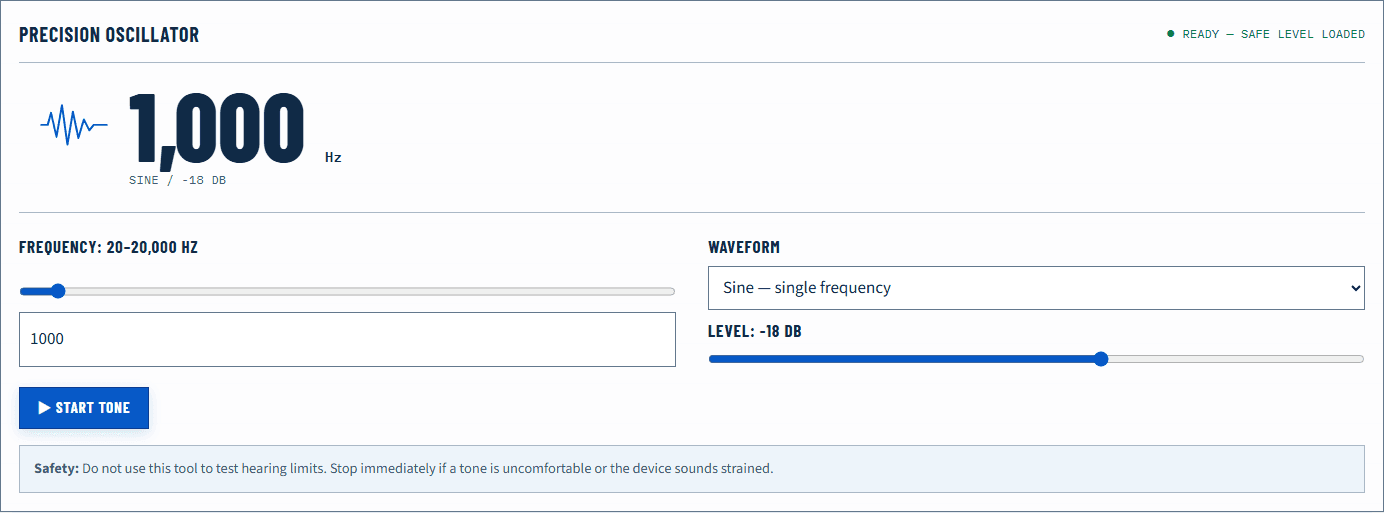
Open the Tone Generator after a user action and note the browser audio-context rate if it is displayed. A reading of 44,100 Hz or 48,000 Hz usually reflects the context and active system path. Do not change system settings simply to force the other number. Investigate only when you have a repeatable symptom such as resampling artifacts in a professional workflow, device incompatibility, drift between independent clocks, or an application requirement.
A 48 kHz context does not make a low-quality speaker high quality. A 44.1 kHz source does not become defective because the system mixer runs at 48 kHz.
See the active browser context
Browser audio begins after a user gesture because autoplay policies commonly prevent unsolicited playback. Open the Tone Generator, start a safe mid-frequency tone briefly, and observe the reported context information. Stop the tone before changing devices.
The Web Audio API exposes BaseAudioContext.sampleRate. MDN notes that every node in one audio context uses the same sample rate and that sample-rate conversion is not directly supported from within that context. Sources may be decoded or converted to participate in the active graph, while the browser and operating system coordinate the final device path.
Reconnect an output and create a new context only if you need to see whether the environment changed. An already running context may not represent a newly selected device in the way you expect across every browser.
What the two rates mean
At 44.1 kHz, the system processes 44,100 samples per second per channel. At 48 kHz, it processes 48,000. The Nyquist principle means a sampled system can represent frequencies below half its sample rate under the necessary filtering conditions. Both rates therefore encompass the conventional 20 kHz upper reference for audible sound.
The practical differences are historical and workflow-related as much as audible. 44.1 kHz is strongly associated with music distribution and compact disc workflows; 48 kHz is common in video, broadcast, operating systems, and communication paths. Modern systems routinely convert between them.
The sample rate does not specify bit depth, converter linearity, clock performance, compression, microphone sensitivity, room response, or speaker distortion. Those variables can dominate perceived quality.
Where resampling can happen
A browser page may play a file created at one rate through an audio context running at another. The operating-system mixer may then send the result to a device configured for its own rate. Good sample-rate conversion is a normal part of modern audio systems, not automatically a defect.
A simplified route is:
source file → browser decode → AudioContext graph → system mixer → device driver → converter
The exact implementation varies. The browser generally does not expose every conversion stage. A displayed context rate therefore describes one documented stage, not the entire chain.
Professional audio applications sometimes use exclusive or low-latency modes to reduce mixing layers, but ordinary browser Web Audio runs within browser and operating-system constraints. Do not infer a bit-perfect path from the context rate.
Read common observations
| Observation | What it does and does not show | Next step |
|---|---|---|
| Browser reports 48,000 Hz | The active context runs at 48 kHz | No action if playback is clean |
| A 44.1 kHz file plays in a 48 kHz context | Conversion is likely somewhere in the path | Treat as normal unless a repeatable artifact exists |
| Device change leaves the old displayed rate | Context lifecycle or browser routing may persist | Stop audio, reload, and compare in a new context |
| Crackles appear after changing rates | Driver, buffer, or application path may be unstable | Restore a stable setting and test one layer at a time |
| Pitch or speed is wrong | Rate metadata or processing may be mishandled | Compare the source in another trusted player |
| Two long recordings drift apart | Independent clock rates may differ slightly | Use synchronization designed for the workflow |
If the problem is simply that a high tone is inaudible, sample rate is not the first conclusion. Device response, level, processing, and personal perception are more immediate variables. See 20 Hz to 20 kHz Explained.
Can you hear 44.1 versus 48 kHz?
A controlled audible comparison must hold mastering, conversion quality, level, device, and listening conditions constant. Merely switching an operating-system number can change several processing stages and is not a valid blind comparison. Claims based on two differently mastered files test the files, not the sample-rate labels alone.
For ordinary meetings, games, and browser tools, stable device support and correct routing matter more than forcing a preferred rate. For production, follow the project and delivery specification so that conversions are intentional and documented.
Higher sample rates can be useful for particular production processing and engineering constraints, but they also increase data and computation. That broader tradeoff is outside what a browser readout can score.
Microphones and sample rate
When a browser opens a microphone, capture participates in the browser and system audio path. A local meter reports digital sample values after any system or browser processing; it does not reveal raw converter performance. Use the Microphone Test to check intelligibility, relative level, and clipping—not to certify the interface rate.
If an application requires 48 kHz, verify that application’s own device settings and exported file rather than relying only on the browser context. Different applications can negotiate or convert independently.
Read What Is dBFS? to keep sample rate separate from level. Sample rate counts samples per second; dBFS describes amplitude relative to a digital ceiling.
Browser limits and privacy
The browser can report its audio context rate, schedule precise digital oscillators, and process microphone samples after permission. It cannot certify the acoustic output, disclose every driver conversion, or guarantee exclusive control of the hardware. Online Sound Test states these assumptions in the methodology.
Device behavior varies by browser, operating system, driver, and connection. Treat a reported rate as useful context for reproducibility, not a fingerprint or quality badge.
For a source-checked comparison of context rates, capture-track readings and hardware limits, see the browser audio compatibility report.
Verify a sample-rate problem
Begin with a repeatable audible or timing symptom. Record the source, browser, context rate, system device format, and output route. Change only the stage required by the workflow, recreate the audio context, and repeat the same source.
If clean playback remains clean at both common rates, there is no repair to make. Leave the stable system configuration in place. If a specific combination produces repeatable crackles or speed errors, preserve the evidence and check the browser, operating-system, and audio-device documentation before updating or replacing drivers.
Official sources
Application and operating-system controls can move. These primary references are the update baseline for this guide.