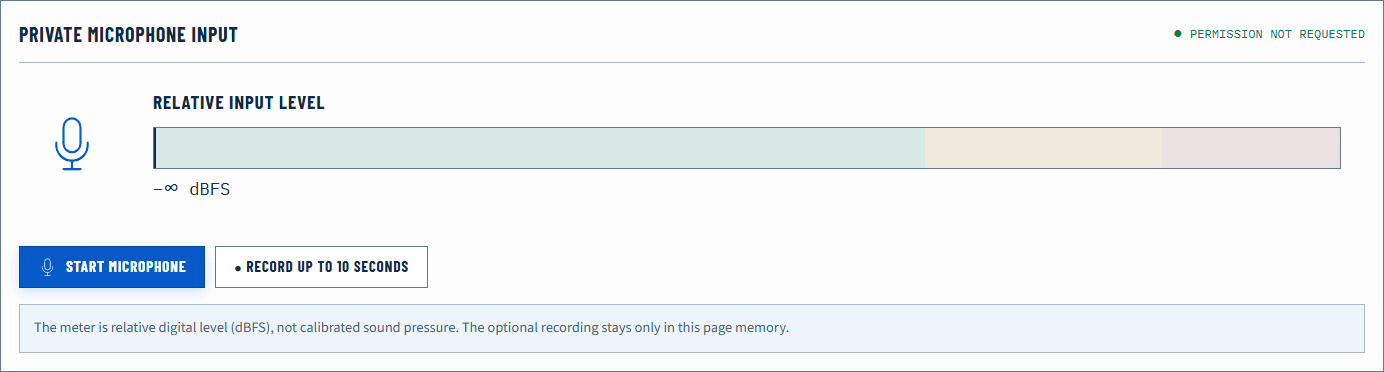
dBFS means decibels relative to full scale. In digital audio, 0 dBFS is the maximum representable peak for the meter’s reference; ordinary signals appear as negative values below it. A browser microphone meter can show relative digital level and clipping risk, but it cannot report calibrated acoustic loudness in dB SPL without a calibrated measurement chain.
Quick answer
Open the Microphone Test, grant access, and speak at your normal distance. A healthy signal should respond clearly while leaving space below 0 dBFS. If peaks repeatedly reach the top and the local recording sounds harsh, lower input gain or move farther away. If speech barely rises above the noise, move closer, select the correct mic, or adjust gain. Do not treat one exact dBFS value as universal across devices and browsers.
The meter is most useful for comparison: before and after a gain change, normal speech versus room noise, or the intended microphone versus an accidentally selected distant one.
Establish the microphone path
Before interpreting numbers, verify that the correct input is active.
- Connect the microphone and select it in the operating system.
- Open the Microphone Test and intentionally grant permission.
- Speak at the normal working distance, then lightly rub or tap near the intended microphone housing.
- Watch whether the meter responds much more strongly to that close sound than to a distant laptop microphone.
- Make a short local recording and listen for intelligibility, noise, and distortion.
A moving meter only proves that some input signal reaches the browser. It does not identify the physical microphone with certainty. Device labels can be limited until permission is granted and may remain ambiguous afterward.
Why the numbers are negative
Decibels express a ratio on a logarithmic scale. For amplitude values normalized to digital full scale, a common calculation is:
dBFS = 20 × log10(amplitude / full-scale amplitude)
An amplitude below full scale produces a negative logarithm, so normal readings are negative. At full scale, the ratio is one and the result is 0 dBFS. Silence in a mathematical sense would approach negative infinity, although real microphone systems always contain electronic and acoustic noise.
A difference of 6 dB is approximately a factor of two in amplitude, but perceived loudness is not a simple one-to-one mapping. Microphone placement, frequency content, room acoustics, automatic gain, and later processing all affect what a listener hears.
Peak, RMS, and meter behavior
Meters do not all display the same statistic. A peak meter responds to short maximum excursions. RMS-like or averaged meters better indicate sustained energy but may hide brief clipping. Browser implementations can calculate values from time-domain samples, smoothing, and update intervals chosen by the tool.
Online Sound Test describes its microphone level as relative dBFS. It does not claim studio calibration. The local recording is the practical companion to the meter: a peak that looks high may still sound clean, while automatic processing can make a visually stable signal sound unnatural.
When comparing results, keep the same microphone, distance, input gain, browser, and sentence. A value from one laptop is not a benchmark for another.
Read common patterns
| Meter and recording observation | Interpretation to check | Useful response |
|---|---|---|
| Peaks repeatedly touch 0 dBFS and sound harsh | Digital clipping or upstream saturation | Lower input gain or increase distance |
| Peaks stay below zero but recording still distorts | Analog stage, microphone, or processing can clip earlier | Lower hardware gain and disable one processor at a time |
| Speech is low and close to the idle noise | Wrong mic, excessive distance, or low gain | Select the intended mic and improve placement first |
| Meter moves strongly when you do not speak | Fan, traffic, feedback, or automatic gain | Identify the noise source and monitor with headphones |
| Meter is flat | Permission, selection, mute, or connection issue | Check system input and browser site access |
| Level slowly rises in silence | Automatic gain control may be increasing sensitivity | Compare with app processing off where available |
If the signal breaks up only during playback, acoustic feedback or Bluetooth routing may be involved. Use headphones for the mic check and read why Bluetooth quality changes when the microphone opens.
dBFS is not dB SPL
dB SPL describes acoustic sound pressure relative to a physical reference. A dBFS meter describes digital sample level relative to digital full scale. The two are not interchangeable. The same room sound can produce different dBFS values through microphones with different sensitivity, preamp gain, distance, orientation, and automatic processing.
Without a calibrated microphone and known gain chain, the browser cannot tell you the room is “70 dB SPL.” It also cannot diagnose hearing. Online Sound Test intentionally avoids both claims.
The Spectrum Analyzer can show relative frequency energy from microphone input, but it shares the same calibration limitation. Use it to compare a repeatable setup, not as a certified noise meter.
Headroom and practical speech
Headroom is the space between ordinary peaks and the digital ceiling. Leaving headroom accommodates louder words, laughter, movement, and unexpected transients. For conversation, intelligibility and stable distance matter more than filling every bit of the meter.
If a meeting app offers automatic microphone volume, establish a sensible physical placement first. Automatic control cannot remove strong room echo or distinguish every background source. Test one setting at a time and listen to the returned recording or test call.
Avoid adding gain at several layers. A USB microphone knob, operating-system input level, browser processing, and meeting-app boost can accumulate noise or clipping. Prefer the microphone’s intended hardware range, then make small software adjustments.
Browser privacy and signal limits
Microphone access starts only after permission. Online Sound Test keeps the short recording in memory for immediate playback and does not upload it or save it to local history. Stop the test to release the media tracks.
Browsers and operating systems can apply processing such as echo cancellation, noise suppression, or automatic gain depending on constraints and device behavior. That means a browser meter may not represent raw converter samples. For a controlled technical measurement, use a documented audio interface and measurement software.
Verify a gain change
Record the same sentence at the same distance before and after one change. Compare peak behavior, idle noise, and intelligibility. If lowering gain stops harsh peaks while speech remains clear, you improved headroom. If moving closer raises speech more than room noise, placement improved the signal-to-noise relationship.
Finish inside the application you will use. A meeting app can apply its own gain and processing after the browser baseline. The baseline gives you a known input; the app test verifies the final communication path.
Official sources
Application and operating-system controls can move. These primary references are the update baseline for this guide.