Zoom can test speakers and microphones from its settings and during the join flow, and Zoom provides an official test meeting. Use those features after a browser baseline. That order distinguishes a system-wide route failure from a Zoom-specific device choice and gives you a controlled result to compare after each change.
Quick answer
Open the Speaker Test and Microphone Test first. If both pass, open the Zoom desktop app, select Settings → Audio, choose the intended speaker and microphone, and run the available tests. You can also join Zoom’s official test meeting and follow its speaker and microphone prompts. Before a real meeting, review the audio devices in the join preview rather than assuming Zoom kept yesterday’s route.
Start at a safe, moderate volume. Zoom, the system mixer, a USB interface, and a headset may each have independent level controls.
Build a known baseline outside Zoom
- Connect the exact headset, microphone, or speakers you plan to use.
- Disconnect idle Bluetooth outputs and monitors that could become the default route.
- Play the Speaker Test and confirm the physical destination.
- Use the Microphone Test and make a short local recording.
- Listen for an intelligible voice, stable level, and no repeated clipping or radio dropouts.
The browser test does not simulate Zoom processing. It verifies the wider input and output path. If this baseline fails, changing Zoom’s echo cancellation or meeting options is premature. Follow the no-sound diagnostic or operating-system checks first.
If the baseline passes and Zoom fails, you now have useful evidence: the hardware works through one application, so Zoom’s selected device, permission, app-level volume, or meeting state deserves attention.
Test in Zoom audio settings
In the Zoom desktop app, open settings and find the Audio section. Select the speaker you intend to use and run the speaker test. Confirm both that you hear the sound and that it reaches the correct device. A laptop speaker producing a tone does not validate the USB headset you meant to use.
Select the intended microphone and run the microphone test. Speak in your normal meeting voice at the distance you will actually use. Listen to any returned recording for clarity, background noise, pumping, and distortion. If automatic microphone volume is enabled, avoid judging the first syllable alone; speak a short complete sentence.
Menu labels and the exact test flow can change across Zoom versions and platforms. Zoom’s official audio-testing documentation is the reference linked below. Use device names and test actions as landmarks rather than relying on the position of a button in an old screenshot.
Join the official Zoom test meeting
Zoom’s test meeting exercises the join workflow without requiring a scheduled meeting. Open the official test-meeting page, launch or join as instructed, and follow the speaker and microphone prompts. This is especially useful after an application update, operating-system change, new dock, or new Bluetooth headset.
During the test, check these separately:
- Playback destination: the signal must reach the intended physical device.
- Microphone source: the selected input must be the microphone you expect, not a laptop array across the room.
- Level and clarity: speech should be intelligible without frequent peaks that sound clipped.
- Join behavior: note whether Zoom automatically joins computer audio or waits for confirmation.
The official test meeting is closer to a real Zoom path than a local browser recording, but it still cannot predict later network congestion or another participant’s equipment.
Read the failure matrix
| What happens | Most likely layer | Controlled next step |
|---|---|---|
| Browser and Zoom speaker tests are silent | System output or hardware | Verify system route, mute stages, cable, power, and Bluetooth connection |
| Browser works but Zoom speaker test is silent | Zoom device selection or app mixer | Select the speaker explicitly and inspect per-app volume |
| Browser microphone meter is flat | System input or permission | Select the input and grant microphone access only to the intended app |
| Browser mic works but Zoom mic test fails | Zoom input selection or app permission | Choose the microphone in Zoom and restart after permission changes |
| Both local tests pass but a meeting breaks up | Network or meeting path | Check connection quality and compare a wired network or audio route |
| Bluetooth audio loses quality when speaking | Headset profile change | Try a separate microphone or wired output |
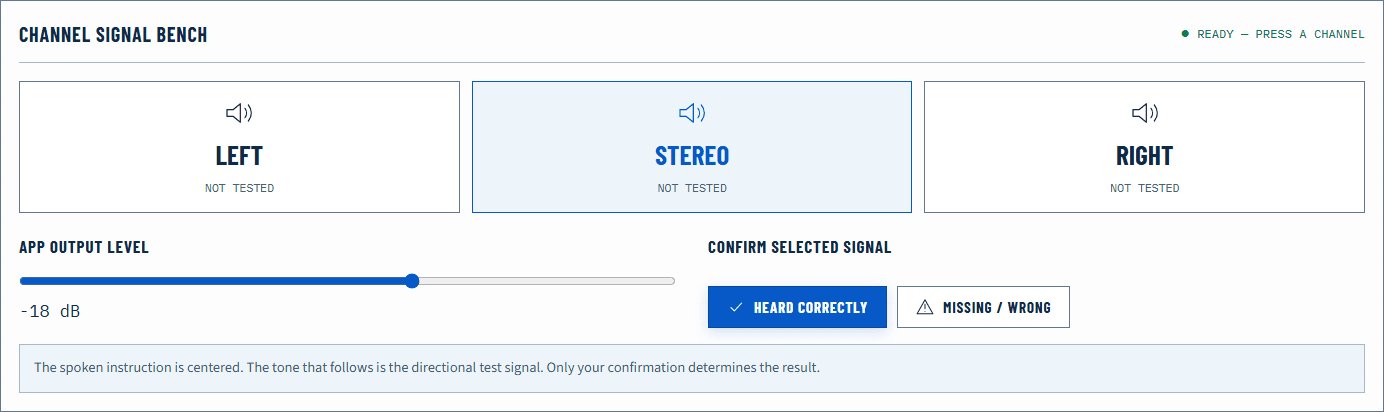
If one ear or speaker side is absent, test channels with the Left and Right Audio Test. Zoom device menus cannot repair a system balance slider or damaged cable.
Check the pre-join preview
Open the real meeting link a few minutes early. The join preview is the last chance to confirm mute state and device selection before other participants hear you. Open the audio menu, verify the speaker and microphone names, and repeat the in-app checks if anything changed since the baseline.
Do not rely on a remembered device name alone. A Bluetooth headset can expose multiple routes, and operating systems can append similar labels. Use a short audible test and speak into the intended mic while gently tapping only the microphone housing if you need to identify it. Keep the tap light to avoid an unpleasant transient.
If the meeting uses a browser rather than the Zoom app, review the browser’s site permission for the microphone. A denied browser permission is independent of the desktop app’s access.
System checks that commonly matter
On Windows 11, verify Settings → System → Sound, then inspect Volume mixer while Zoom produces a sound. Windows can route an app differently from the system default. See How to Test Sound on Windows 11 for the full path.
On macOS, verify Output, Input, and output balance in System Settings. Review microphone privacy access for Zoom or the browser. See How to Test Sound on a Mac for the controlled sequence.
When using Bluetooth, remember that activating the headset mic may alter playback quality. The guide to Bluetooth headphones and microphone profiles explains why this can be normal profile behavior rather than a damaged driver.
Compare the desktop app and browser carefully
The Zoom desktop client and a meeting opened in the browser do not share every permission or routing decision. The desktop app uses its own saved device choices and operating-system privacy access. The web client depends on the browser’s site permission and may follow the browser or system route differently.
If one client passes and the other fails, record the client before changing anything. Confirm that both were pointed at the same physical speaker and microphone. A browser test passing beside a failing Zoom desktop app narrows the problem to the app path; it does not prove that every web meeting will behave identically.
Do not keep both clients connected to the same meeting during the comparison unless you deliberately mute one completely. Two active microphones and speakers in the same room can create echo and make a routing issue look like acoustic feedback.
Check automatic processing with a fixed sentence
Zoom can apply microphone-level and noise-processing choices. Establish the correct microphone and a reasonable physical gain before changing them. Record one short sentence using the built-in test, change one processing option, and repeat at the same distance.
If the first word is clipped or the level pumps, speak for several seconds so automatic behavior can settle. If distortion exists even at a lower input level and with processing simplified, compare the microphone in the local browser test. This separates Zoom processing from an upstream analog or hardware problem.
For echo, use headphones and lower speaker playback first. Echo cancellation is not a substitute for placing a loudspeaker next to an open microphone.
Retest the meeting path
After changing one setting, repeat the same Zoom speaker or microphone test. Do not change automatic level, noise suppression, output device, and system volume together; a pass would not tell you which change mattered.
For an important call, keep a backup route ready and join early. If both Online Sound Test tools and Zoom’s official test meeting pass, preserve that result and focus later failures on the meeting context, network, or device state at that time. A precise observation—“Zoom playback passed, but participants did not receive the selected USB mic”—is actionable. “Audio failed” is not.
Official sources
Application and operating-system controls can move. These primary references are the update baseline for this guide.