macOS can route sound to built-in speakers, displays, AirPlay destinations, USB interfaces, and Bluetooth devices. It also exposes input selection, output balance, and accessibility audio controls. Test those layers in order with a known browser signal so that one routing change does not become a collection of guesses.
Quick answer
Open System Settings → Sound, select the intended output, and set a moderate level. Run the Speaker Test, then verify left and right with the Stereo Test. Under Input, choose the intended microphone and compare the macOS input response with the Microphone Test. If one side is quieter, inspect the output balance and accessibility audio settings before suspecting hardware.
The exact arrangement of System Settings can change between macOS releases. Apple’s current guides, linked below, are the interface reference.
Prove the output route
Connect only the output you plan to test. Open System Settings, select Sound, and review Output. Choose the intended built-in, wired, USB, display, AirPlay, or Bluetooth device. Check output volume and mute state where those controls are available.
Open the Speaker Test and play a controlled signal. Confirm the physical destination. A signal from the MacBook speakers does not validate a connected display or headset. If the wrong device plays, return to Sound settings and select explicitly.
If nothing plays, try one trusted system or media sound. When every source is silent, inspect hardware power, cable seating, Bluetooth connection, and system output. When other Mac sounds work but one browser does not, review the tab, site state, and whether another application changed the route.
Check left, right and balance
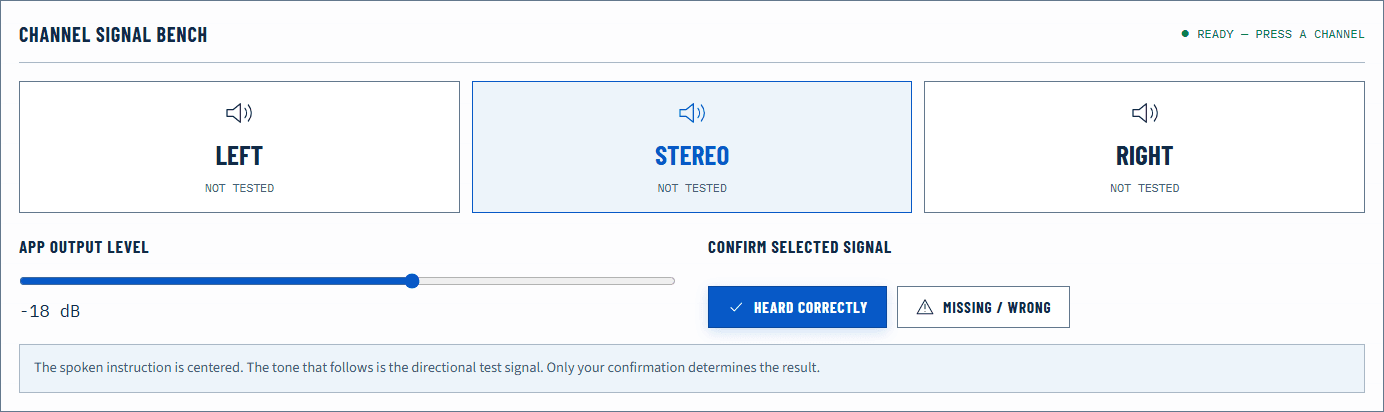
Run the Stereo Test at a safe level. Confirm that left and right reach the correct physical sides, then listen to the center signal. If one side is missing or softer, return to the selected output in Sound settings and inspect the balance control if macOS exposes it for that device.
Center the balance and replay the same sequence. Do not use balance to compensate for reversed channels. Reversed identity points toward cables, interface routing, or speaker placement.
Accessibility audio settings can also affect the result. Mono audio combines stereo channels and can make a left-only signal appear from both sides. Review the relevant Audio settings under Accessibility, change one option temporarily, and repeat the test. Read Mono vs Stereo Audio if the difference is unclear.
If equal software settings still sound unequal, reverse headphones briefly or swap speaker positions to see whether the symptom follows the hardware or remains in the listening position. Headphone seal, worn pads, speaker distance, and room reflections all alter perceived balance.
Test microphone input
In System Settings → Sound → Input, select the intended microphone. Speak at a normal distance and observe the input level response. Then open the Microphone Test, grant access when prompted, and make a short local recording.
Compare the observations:
- macOS and browser both respond: the basic capture path works.
- macOS responds but browser does not: inspect the browser’s site permission and macOS microphone privacy access.
- Neither responds: verify physical connection, hardware mute, input selection, and system privacy access.
- The wrong room sound dominates: macOS may have selected the built-in or display microphone instead of the close external mic.
After changing macOS privacy permission, quit and reopen the affected browser or application if the new access is not picked up. Do not repeatedly grant and revoke access while a recording session is active.
The browser meter is relative dBFS information, not a calibrated sound-pressure measurement. Aim for intelligible speech with headroom rather than a universal visual target.
Read the failure matrix
| Observation | Most useful next layer | Why |
|---|---|---|
| Every Mac sound is silent | Output selection, mute, connection, hardware | Failure is wider than the browser |
| System sound works; browser test is silent | Browser tab/site and route state | The physical output can already play |
| Left test reaches both sides | Mono accessibility setting or upstream summing | Channel separation is being combined |
| One side stays quiet after centering balance | Cable, fit, driver, placement, or room | Software balance is no longer the explanation |
| macOS input moves; browser does not | Browser permission | The operating system sees the microphone |
| Audio changes only on Bluetooth calls | Bluetooth voice route | Activating the mic can change the connection mode |
For a broad silent-output issue, follow No Sound in Your Browser. For distorted output, lower every gain stage and use the crackling or distorted sound guide.
Account for AirPlay, displays and Bluetooth
AirPlay and display audio make the physical destination less obvious. Confirm the selected route in Sound settings and any menu-bar sound control, then watch and listen to the actual destination. Networked playback can include latency that does not appear on built-in speakers.
Bluetooth headsets may expose a high-quality playback route and a different two-way voice route. If playback becomes narrow when the microphone opens, compare a separate microphone or wired output. The detailed Bluetooth profile guide explains the tradeoff.
A browser cannot measure AirPlay delay accurately against a physical room without an external reference, nor can it identify a loose speaker cable. Treat the digital signal as the controlled input and your repeatable observation as the result.
If an application is sandboxed or managed, its available devices and permissions may differ from another browser or app. Record which client passes before changing the Mac-wide route. A system setting is broader than an application setting, so prefer the narrowest change that matches the evidence.
Verify after one change
Stop audio before reconnecting hardware. Change one route, balance setting, permission, or connection, then replay the same signal. A result that follows one headset to another source implicates the headset; a result that stays on the Mac across known-good devices implicates the system or application path.
Finish with the exact app you plan to use. Confirm its input and output selections after the Mac baseline passes. This is especially important for meeting apps, which can remember devices independently of the current macOS default.
Official sources
Application and operating-system controls can move. These primary references are the update baseline for this guide.